15 KiB
xtc screenshots
Browse all screenshots with captions.
The complete gallery was refreshed after Phases 100–105 on 2026-11-06, including
MIDI preferences/import, the sample editor, creative workflows and real installed
VST3 insert chains.
The gallery captures are actual rendered application windows and menus on a
1440 × 960 virtual X11 screen. The promotional overview.png is a designed
composite of cropped, proportionally scaled captures with added headings; the
other captures have no mockups, compositing or image edits. The JUCE editor
image below uses its separately documented direct component-rendering path.
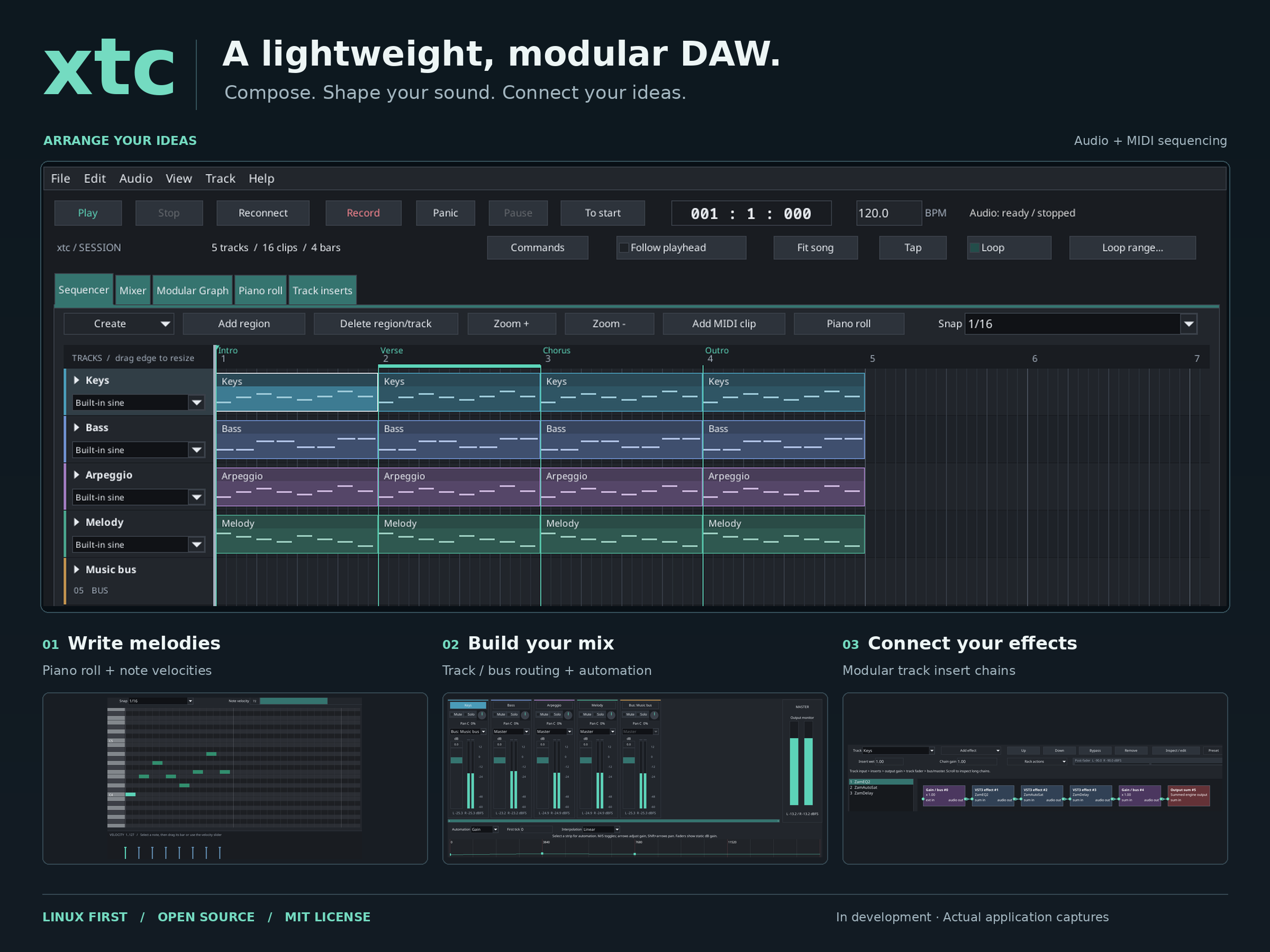
Regenerate the 2400 × 1800 promotional overview after refreshing the gallery:
python3 tools/create_promotional_overview.py
This optional image composition script requires Pillow, Fontconfig (fc-match)
and DejaVu Sans. It uses sequencer-loop.png, piano-roll-velocity.png,
mixer-playing.png and track-inserts-vst3.png; no application UI is fabricated.
The full screenshot capture target replaces overview.png with a raw capture,
so run the composition script afterwards to restore the promotional version.
The temporary demonstration project starts from
examples/projects/modern-session.xtc, adding Intro/Verse/Chorus/Outro markers,
a routed music bus and gain automation. Editing results use the real control
APIs and GUI history/preparation paths. Original projects, media and user
configuration are not overwritten. Black margins are the virtual desktop;
floating views show the actual detached windows together.
Optional JUCE workstation (Phase 113)

Rendered directly from the actual JUCE component hierarchy, with the first track expanded and playback running. The test deliberately configures missing MIDI devices and captures finite stereo output through private JACK probe ports. It preserves user preferences and physical routes. A running JACK-compatible server is required. After building the optional frontend and tests:
XTC_JUCE_SCREENSHOT="$PWD/screenshots/juce-workstation.png" \
  xvfb-run -a -s '-screen 0 1440x960x24' ./build/juce-gui/test_juce_playback
See the JUCE frontend guide for SDK and build options.
Continuous audio velocity editing (Phase 110)

The expanded audio track shows a continuous gain envelope alongside the Keys MIDI velocity lane. Points were created through actual sequencer gestures; the screenshot is an unmodified application capture. Click anywhere in an audio lane to add a point, drag vertically to adjust it, or right-click a cap to remove it. The level range is 0–400%; points share the mixer's saved gain automation.
The editing preview shows an active vertical drag with its level displayed in the track header.

Reproduce these two captures without replacing the other images:
cmake --build build --target capture_screenshots
XTC_CAPTURE_AUDIO_VELOCITY_ONLY=1 xvfb-run -a -s '-screen 0 1440x960x24' \
  ./build/capture_screenshots "$PWD/screenshots"
Expandable track velocity lanes (Phase 109)

Captured from the real application on 2026-11-06. Keys and Bass are expanded; subsequent tracks move downward. Click the arrow beside a track name, then drag a note bar's cap to edit velocity. The compact workspace, sequencer loop and promotional overview were also refreshed to show the disclosure arrows.
Reproduce these sequencer captures without replacing the rest of the gallery:
cmake --build build --target capture_screenshots
XTC_CAPTURE_VELOCITY_ONLY=1 xvfb-run -a -s '-screen 0 1440x960x24' \
  ./build/capture_screenshots "$PWD/screenshots"
python3 tools/create_promotional_overview.py
Steinberg and JUCE SDK integration (Phases 106–107)
Captured on 2026-11-06 from the built SDK examples, with no fabricated UI.
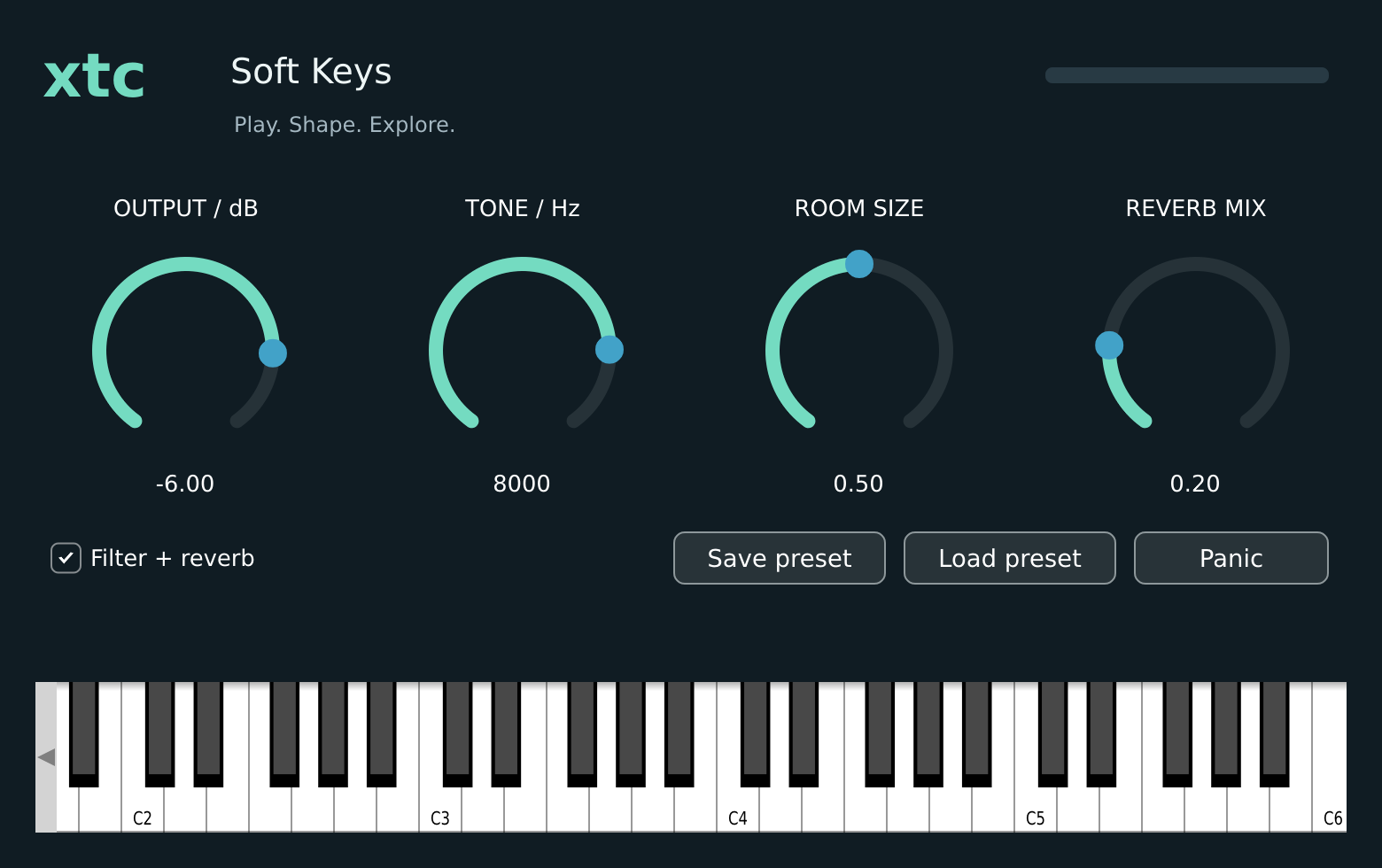
The 1560 × 980 image is rendered directly from the actual JUCE editor, with filter/reverb enabled and output at -6 dB. It shows the parameter controls, preset buttons and on-screen keyboard without opening an audio device.

- Steinberg SDK effect identity and current adapter limits
- Steinberg SDK Sine instrument discovered by xtc
- JUCE VST3 instrument discovered by xtc


The four 1440 × 960 FLTK captures load the actual SDK-built VST3 bundles. The Steinberg examples have no custom editor; xtc displays its host graph and metadata. The JUCE native editor above is rendered separately: xtc's C host currently uses plugin defaults and does not embed native VST3 editors or expose their controller parameters. Unsupported class counts in the choosers include non-instrument/controller classes; they do not mean the selected synth failed. The host is stopped and meters are idle. No ASIO interface is shown or implied. See Steinberg integration and JUCE integration.
After configuring the root CMake project and building both SDK examples, reproduce only these host captures with:
cmake --build build --target capture_screenshots
XTC_CAPTURE_STEINBERG_BUNDLE="$PWD/build/steinberg-sdk/VST3/Release/xtc-sdk-examples.vst3" \
XTC_CAPTURE_JUCE_BUNDLE="$PWD/build/juce/XtcJuceSynth_artefacts/Release/VST3/xtc JUCE Synth.vst3" \
  xvfb-run -a -s '-screen 0 1440x960x24' \
  ./build/capture_screenshots "$PWD/screenshots"
This uses the existing capture prerequisites and temporary project isolation;
it preserves the other gallery images, including overview.png.
To reproduce the JUCE editor image, remove or move the existing destination
first (the command refuses overwrites):
xvfb-run -a ./build/juce/xtc-juce-render_artefacts/Release/xtc-juce-render \
  --snapshot "$PWD/screenshots/juce-soft-keys-editor.png"
MIDI devices, defaults and file exchange (Phases 100–105)
- Open MIDI input dropdown with real host devices
- MIDI source/destination preferences and channel defaults
- Device setup and MIDI defaults help
- File menu with MIDI import and selected-clip export
- An exported clip reimported into a new arrangement
- The imported notes and velocities in the piano roll


These captures use real file export/import and the real preferences schema. No hardware device names or connected devices are fabricated; blank port defaults mean no automatic connection. Actual device choices depend on host JACK/PipeWire exposure. Configuration paths are disabled in captures to preserve user settings. See MIDI workflows and limits.
After configuring build/audio-editor with the root CMake project,
reproduce these five captures with
XTC_CAPTURE_MIDI_ONLY=1 cmake --build build/audio-editor --target screenshots.
The open input dropdown was captured after the device-label lifetime fix. It
shows actual host sources, including UMC204HD, USB MIDI, Oxygen Pro 25 and BLE
MIDI ports. No route is selected and user preferences are preserved. Reproduce
just this image with real MIDI sources exposed by JACK/PipeWire:
XTC_CAPTURE_MIDI_INPUT_ONLY=1 cmake --build build/audio-editor --target screenshots.
The capture fails explicitly if the host exposes no input sources.
Creative workflows (Phases 90–99)
Four real captures show the current transport Tap button, insert meters and creative controls; the rest of the gallery also reflects the current UI.
- Dub Echo template in the insert graph
- Rack actions: bulk edits, comparison and chain clipboard
- Chord strumming controls
- Strummed chord notes in the piano roll


Reproduce only these captures with
XTC_CAPTURE_CREATIVE_ONLY=1 cmake --build build/audio-editor --target screenshots.
The rack shows the actual template and idle meter; no live peak readings are
fabricated. See creative workflow limits.
Compact workspace and installed VST3 effects (Phases 80–89)
- Compact sequencer workspace
- Create dropdown over the sequencer
- ZamEQ2 → ZamAutoSat → ZamDelay on the Keys track
- Verified VST3 identity and adapter capabilities
- Parallel wet/dry branches in the actual insert graph


The three VST3 effects are installed on this host under /usr/lib/vst3, loaded
through the real host and prepared in the track's chain. These are host graph
and identity views; native plugin editor windows are not available. The
identity view explicitly reports default configuration and absent parameter
controls. Long graphs scroll horizontally. See
TRACK_INSERTS.md for precise compatibility limits.
New arrangement and composition workflows
| Phase | Feature | Captures |
|---|---|---|
| 58 | Persistent named arrangement markers | Ruler, marker editor |
| 59 | Section navigation and looping | Current section loop |
| 60 | Ripple time insertion/removal | Controls, inserted gap |
| 61 | Complete track duplication | Independent layered track |
| 62 | Nondestructive MIDI splitting | Split clip |
| 63 | MIDI clip consolidation | Consolidated clip |
| 64 | Seeded MIDI humanization | Timing, velocity and seed |
| 65 | Chord construction | Intervals, generated notes |
| 66 | Offline arpeggio generation | Step, gate and direction, written pattern |
| 67 | Audio peak normalization | Target dBFS, normalized clip |
| 68 | Portable media collection | New destination folder |


Collection is also executed by the capture tool into its temporary directory; the screenshot shows its destination prompt, not a file browser or progress UI. See COMPOSITION_WORKFLOWS.md for precise behavior, limits and commands. The screenshots illustrate implemented workflows; they do not establish feature parity with other DAWs.
Audio source editor (Phases 69–79)
- Frame selection, waveform, statistics and processing controls
- Detected source attacks and clip slicing controls


These captures show the actual modal editor with the repository pluck WAV. Processing is staged locally; Save full copy and relink applies it to the project. See AUDIO_EDITOR.md for limits and frame/tick rounding.
Refreshed application views
All pre-existing images below were recaptured. Mixer playback meters come from
real JACK callbacks. The minimum-size capture uses a 1220 × 720 main window;
the scrolled view adds twelve tracks. Audio views import the repository's
original-pluck.wav and apply clip gain/fades. The older descriptor/control views use repository test
fixtures. The track-insert views below use real installed host VST3 binaries. Internal instrument menus and delay/reverb
editors show the real available devices and controls. The command palette uses
the current application action list.


Detach panels from the View menu; close a floating window or use its Dock button to return it to the main window.
Reproduce the gallery
From the repository root, run:
cmake -S . -B build/next-daw -DCMAKE_BUILD_TYPE=Debug
cmake --build build/next-daw --target screenshots
This optional documentation target requires the existing FLTK/JACK build
prerequisites, a running JACK server, Xvfb (xvfb-run), ImageMagick (import) and
xdotool. It builds the repository plugin fixtures, runs
the capture tool, and replaces the gallery
PNGs. All demonstration edits and collection outputs use an automatically removed
temporary directory; no preferences are saved. It neither installs dependencies
nor starts/reconfigures the audio server.
Set XTC_CAPTURE_SAMPLE_ONLY=1 for the capture tool (or the CMake target) to write
only the two sample-editor images while retaining the existing gallery.
To reproduce the host captures where those Zam bundles are installed:
XTC_CAPTURE_HOST_VST3=1 xvfb-run -a -s '-screen 0 1440x960x24' \
  ./build/audio-editor/capture_screenshots "$PWD/screenshots"
Run cmake --build build/audio-editor --target screenshots first to build the tool and
refresh the full fixture/demo gallery. All captures use temporary projects and
preserve user settings and original media.